SCREEN TRANSLATOR FOR IPHONE & IPAD
Gotcha Screen Translator
Your universal
screen translator.
Translate any app without leaving the screen using Gotcha’s built-in Shortcut. For expats, travelers and anyone using apps in another language. Especially strong with complex layouts in Chinese apps like Taobao.
iPhone & iPad · iOS / iPadOS 16.6+
3-day free trial available worldwide. In-app subscriptions.
CUSTOMER REVIEWS
What users say.
“I have tried several apps with the same function, but this app is the best.”
“Love it for taobao. As an expat trying to buy anything on elema, taobao, etc. it can be challenging with a lot of screenshots. Now it’s easier.”
“The translation layout is seamless and the translation for menus actually makes sense!!!!”
Selected App Store reviews. Quotes reflect each reviewer’s experience.
FEATURES
Tap-to-Translate.
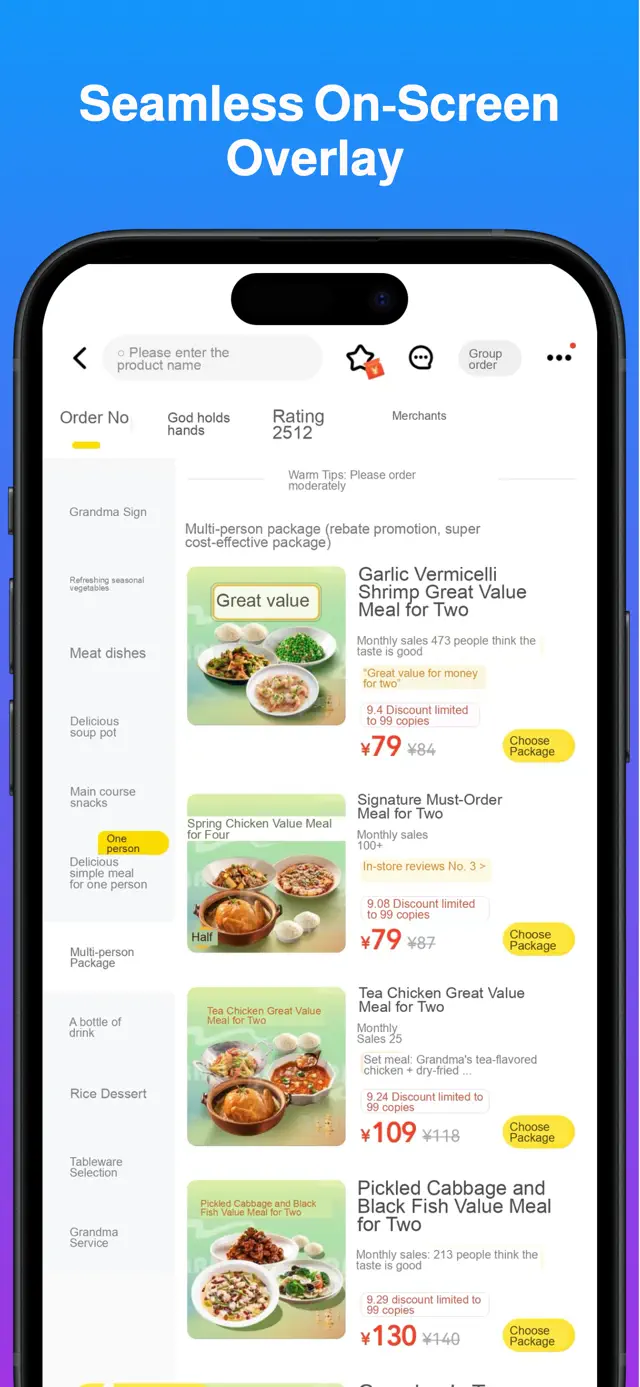
Trigger Gotcha’s built-in Shortcut to translate the screen you’re on. Read the translation in an on-screen overlay, without switching apps.
Camera translator built in.
Open the camera translator in Gotcha. Point your camera at signs, menus or printed text and translate them directly in the app.
Gotcha AI Translate™.
Translate the meaning, not just individual words. High Accuracy Mode uses context to help you understand shopping reviews, chats and menus, including emojis and local slang.
Gotcha Smart Layout™.
Restores the original layout with colors true to the source. Translated text appears where it belongs, so you can follow the screen as you read.
Translate text on images.
Read text on product photos, ads and game menus, even when you can’t select or copy the text.
Translate system messages and dialogs.
Understand pop-ups, alerts, permission requests and error messages in your language.
Offline mode available.
Text recognition and translation run on your device, even without an internet connection. Download the languages you need first.
No VPN needed.
Use Gotcha without a VPN, including when you’re in China.
Speed and results depend on your device, mode and screen. Download the languages you need before using Offline Mode. Available offline languages may differ.
TAOBAO, PINDUODUO, JD AND MEITUAN
Translate Chinese apps.
Our specialty.
For expats, travelers and anyone using Chinese apps worldwide. Order food on Meituan, shop on Taobao, Pinduoduo or JD, find jobs on BOSS Zhipin, and read reviews in your language. Enjoy Chinese digital life — like a local.
Compare translation resultsKeep the layout and colors.
Gotcha works out where the text belongs and puts the translation back in the same place. Colors stay close to the original, so it’s easier to see which words go with which button, photo or product.
Read reviews that make sense.
Use High Accuracy Mode for Chinese product descriptions, reviews and menus. It uses context to help translate the meaning, including local expressions, rather than just translating one word at a time.
TRANSLATION EXAMPLES
Translate Meituan menus.
Read dish names, descriptions and offers in English or your chosen language. The translation appears over the menu you’re looking at.
Read the Meituan guideExamples from our App Store listing. Results vary with the screen and source text.
Gotcha is independent and is not affiliated with these apps.
HOW TO USE GOTCHA
Set it up.
Open an app. Translate.
Run the Shortcut to translate the screen you’re on. Run it again for the next screen.
- 01
Set up Gotcha.
Install Gotcha, choose your language and follow the instructions to set up its Shortcut.
- 02
Open your app or game.
Find the conversation, game dialogue, menu or page you want to read.
- 03
Trigger the Shortcut.
Use the Action Button on supported iPhones or AssistiveTouch to trigger Gotcha’s Shortcut and see the translation on your screen.
LANGUAGES
Supported languages.
Choose your translation language in Gotcha.
- Amharic
- Arabic
- Belarusian
- Bengali
- Burmese
- Chinese (Simplified)
- Chinese (Traditional)
- Danish
- Dutch
- English
- French
- German
- Hausa
- Hebrew
- Hindi
- Indonesian
- Italian
- Japanese
- Kazakh
- Khmer
- Korean
- Lao
- Malay
- Persian
- Polish
- Portuguese
- Romanian
- Russian
- Serbian
- Spanish
- Swahili
- Tagalog
- Thai
- Turkish
- Ukrainian
- Urdu
- Uzbek
- Vietnamese
- Zulu
Available offline languages may differ. Check Gotcha and download the languages you need before using Offline Mode.
BEFORE YOU DOWNLOAD
Devices, pricing
and support.
Check important details in the original app before you place an order or make a payment.
- Devices & languages
- iPhone and iPad with iOS / iPadOS 16.6 or later. See the full list of supported languages.
- Pricing & free trials
- Free to download, with paid subscription features. A 3-day free trial is available worldwide. Check your local App Store listing for subscription prices and trial terms.
- Privacy & support
- Read our privacy policy to see how information is handled. Need help getting started? Contact Gotcha support.
FAQ
Common questions.
What is Gotcha Screen Translator?
Gotcha is a universal screen translator for iPhone and iPad from Techtona Limited. Use its built-in Shortcut to translate apps and games without leaving the screen, or open its camera translator to read signs, menus and printed text.
Can I translate apps and games?
Yes. Gotcha translates the text you can see on your screen, including buttons, game menus, dialogue and text on images. Run the Shortcut again when the screen changes. The text needs to be clear enough to read.
Does Gotcha have a camera translator?
Yes. Gotcha has a camera translator built into the app. Open it in Gotcha and point your camera at a sign, menu or printed text to translate it. You don’t need to run a Shortcut from another camera app.
How do I use Offline Mode?
Download the languages you need in Gotcha, then select Offline Mode. Your device reads and translates the text locally. Check the app for available offline languages; they can differ from the online modes.
Which translation mode is fastest?
Offline Mode is the fastest once the languages you need are downloaded. Speed Mode is faster than High Accuracy Mode. Choose High Accuracy for more help with meaning and context. Speed varies with your device, the screen and your connection when using online modes.
Can I translate Taobao and Pinduoduo?
Yes. Gotcha translates shopping pages in Taobao, Pinduoduo and JD, including product details on images. It puts the translated text over the original screen and keeps the layout and colors close to the original. You can also use it to read Meituan menus and shopping reviews.
Does it translate automatically as I scroll?
No. Run Gotcha’s Shortcut to translate the current screen, then run it again after you scroll or open a new page. Follow the setup instructions in Gotcha to choose how you run the Shortcut.
Which devices and languages does it support?
You need an iPhone with iOS 16.6 or later, or an iPad with iPadOS 16.6 or later. See the Supported languages section above for the full list. Available offline languages may differ; check Gotcha before downloading language models.
Is Gotcha free? Do I need a VPN?
Gotcha is free to download, with paid subscription features. A 3-day free trial is available worldwide. Check your local App Store for subscription prices and trial terms. You don’t need a VPN to use Gotcha.

DOWNLOAD FOR IPHONE & IPAD
Gotcha.
Your universal screen translator. With camera translation built in.
Download on the App Store